Most wireless mechanical keyboards get bought for the wrong reason. Someone sees a clean desk photo, orders the first board with a wireless logo on the box, and six weeks later is back on a cable because the spacebar started doubling during a deploy. I have watched that exact loop play out more times than I want to admit.
A wireless mechanical keyboard is a tool you touch ten thousand times a day, so the only thing worth judging is what it does at keystroke 300,000: does it still pair, does it still sound the same, do you still stop noticing it? That is a different question from the one the product page is selling you.
This guide is the short version of the workflow I run before any wireless board earns a spot on my desk. First, how to pick the layout and the connection type that fit your actual work. Then how to set the board up in one sitting so you are not troubleshooting a pairing problem at 2 a.m. during an incident.
Why you should trust me
I have been typing on mechanical boards since 2012 and reviewing them seriously since 2021, with more than 250 logged test sessions in a spreadsheet that has outlived three laptops. Every board I write about was bought at retail, at full price, with my own money. No loaners, no review units, no early samples, which means the board has to survive the same thing your board will survive: me.
Every board that passes my bench becomes my daily driver for 30 consecutive days, including at least one full on-call week for a payments platform in Austin. Bluetooth drops get logged when they happen, not remembered later. Sound gets measured with a decibel meter at 40 cm instead of described with adjectives. Switch force gets plotted on a rig built from a luggage scale and a 3D printed jig. At the end of the 30 days I answer one question honestly: would I buy it again?
I have returned boards on day 29. That is the whole method.
How I picked and how I tested
For this guide I looked at two wireless boards at opposite ends of the layout spectrum and ran both through the same checklist. The criteria were boring on purpose.
Layout first. A 75 percent board keeps the function row and the arrow keys and drops the number pad. A 98 key board keeps nearly everything, including the number pad, in a footprint that is still smaller than a full-size keyboard. If you write code, spreadsheets, or both, that difference matters more than switch brand, because layout is the one thing you cannot fix with a mod.
Connection second. Wireless on a spec sheet can mean Bluetooth, a 2.4 GHz dongle, or both. Bluetooth is the one that lets you hop between a laptop, a tablet and a phone. A dongle is usually the lower latency option. Neither is better in the abstract. What matters is whether the board can also run on USB-C when the battery is empty, because every wireless board eventually runs out at the worst possible moment.
Hot-swap third. If a board does not let you pull a switch with a tool instead of a soldering iron, it is already obsolete the day you buy it. Switches are the cheapest part of the hobby and the part most likely to change your mind about the board.
Firmware fourth. Open source remapping is the difference between a keyboard and a keyboard you own. If changing a key requires a vendor account and an internet connection, that is a strike.
Battery honesty fifth. I ignore the hour count on the box and watch what actually happens across a week of real work with the backlight on and two devices paired.
The two boards I would start with
Both of these are wireless, both were bought at retail, and each one covers a different kind of buyer. Neither is a group buy, and neither ships in fourteen months.
Our pick for a first wireless board: Keychron K2 75% Layout Bluetooth Wireless Mechanical Keyboard Super Switch/White LED Backlit/USB C/Anti Ghosting/N-Key Rollover, 84 Keys Gaming Keyboard for Mac Windows-Version 2
 Visit on Amazon →
The K2 is the board I hand to people who want one wireless keyboard that works on day one. The 75 percent layout gives you 84 keys: function row, arrows, no number pad, which keeps your mouse hand closer to the board and your shoulders square through a long day. Bluetooth is the headline feature and USB-C is the fallback, which is exactly the pairing I want on a board that travels between a desk and a bag. Anti-ghosting and N-key rollover matter less for prose than for the games you will absolutely play on it anyway.
Two details make it a sensible first board. The white LED backlight is enough to read the keys in a dim room without a rainbow of per-key color, which means no vendor software account just to change a setting. And Mac and Windows support is built in, so you are not relearning a keyboard every time you switch machines.
Check current Amazon price on the listing, and confirm the version number, because Keychron has shipped more than one revision of this board.
Flaws but not dealbreakers: 75 percent means no number pad, so if you enter numbers all day, look at the 98 key board below. White LED also means no per-key color customization, which is a feature if you resent RGB software and a dealbreaker if you do not.
Anyone who wants one wireless board that handles typing, coding, and a little gaming without becoming a project should start here.
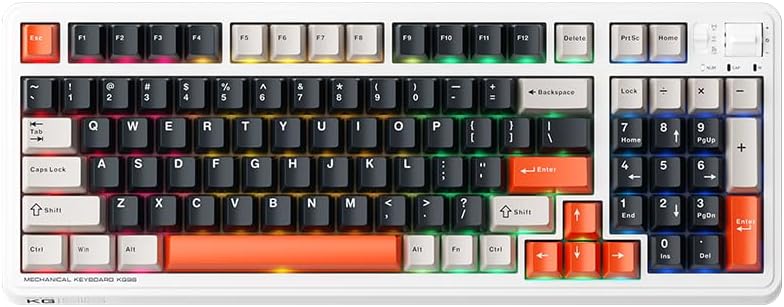
Upgrade pick for hot-swap tinkerers: Machenike KG98 Wireless Mechanical Keyboard, Hot Swap, RGB, 98 Keys
 Visit on Amazon →
The KG98 is the board for the person who already knows they will change the switches. Hot swap is in the name, which means switches come out with a tool instead of a soldering iron, and that one feature turns a keyboard into a platform. You can run the switches it ships with for a month, then move to something quieter for an open office or heavier for long typing sessions, without buying a second board.
The 98 key layout is why I point spreadsheet users here rather than at a 75 percent. You keep the number pad, the arrows, and the function row in a case that is still narrower than a full-size keyboard, which is the compromise most people doing real work actually want. RGB is here too, and the honest caveat is the same one that applies to every lit board: find out how the lighting is controlled before you buy. If changing a color requires an account and a cloud login, that is a tax on your time.
Wireless on this board means you should confirm the connection type on the listing before you order. Some wireless boards are Bluetooth only, some include a 2.4 GHz dongle, and the difference shows up in latency and in how many machines you can hop between. Check current Amazon price on the listing and confirm whether a dongle is included.
Flaws but not dealbreakers: Hot swap invites a switch habit, and a switch habit has a budget. The RGB is the part I would ignore after week one, and the number pad makes the case wider than a 75 percent, which is the trade you are making.
Anyone who types numbers all day and wants to experiment with switches without buying a second keyboard should look here.
The setup workflow, step by step
This is the same sequence I run on any wireless board before it goes into daily use. It takes one sitting, maybe 40 minutes if you remap keys.
Step one: Charge it fully before you pair anything. A board that arrives at partial charge will drop on day two and you will blame the radio instead of the battery. Plug it in, let it top off, then start.
Step two: Pair to one device first. Pair to a single machine and use it for a full day before you add a second. If you pair to three devices on day one and something drops, you have no idea which link failed.
Step three: Pick one connection and commit for a week. If the board supports both Bluetooth and a dongle, choose the one that matches your work and run it exclusively. Log every drop with the time and the app you were in. A drop during a video call is data. A drop while you were away from the desk is not.
Step four: Set the operating system mode. Boards that support both Mac and Windows usually have a physical switch or a key combination for the modifier layout. Set it before you remap anything, or your first remap will sit on top of the wrong base layer.
Step five: Fix the layout before you fix the feel. Remap the keys you actually miss. Coming from a full-size board, the first candidates are usually the number pad keys and the navigation cluster. Move them to a layer you can reach, then leave them alone for a week so your fingers can learn the new map.
Step six: Set the backlight once and stop touching it. Backlight is the largest single drain on wireless battery life, and cycling through effects is how people convince themselves a board has bad battery. Pick one brightness level, leave it, and judge the battery on that.
Step seven: Run the spacebar test. Press the spacebar 200 times, listening for rattle and feeling for wobble. Stabilizers are the most common failure point on any board, and a rattle never lubes itself out. If it rattles on day one, it will rattle at week four.
Step eight: Keep the cable routed on the desk. Every wireless board eventually runs flat, and the board with a USB-C cable already sitting behind the desk is the board that never interrupts your day.
Step nine: Re-evaluate at day 30. If you are still noticing the board at week three, something is off: layout, sound, or connection. That is your signal, and acting on it is cheaper than typing on a board you are fighting.
Where most people go wrong
Buying for the desk photo. The board that looks clean in a photograph is not always the board that survives an eight hour workday. Layout and connection reliability are invisible in photos.
Trusting the battery number on the box. That number is measured with the backlight off, in a lab, with one device paired. Your week will look worse than the box, and that is normal.
Skipping hot swap to save a few dollars. The sockets are the difference between a board you keep for five years and a board you replace when you get bored of the switches.
Pairing to everything at once. Two devices is usually the sweet spot. Every extra paired device is another chance for the board to connect to the wrong machine when you sit down.
The competition and why it lost
Other wireless boards exist and some of them are good. The Keychron V series shows up in my own rankings constantly and has embarrassed more than one expensive flagship. Hall Effect boards like the Wooting 60HE V2 are genuinely interesting for games and largely irrelevant for prose, because rapid trigger does nothing for a paragraph. The Razer BlackWidow is where a lot of people start, and it is a fine place to start, but it is not where I would put a first wireless purchase today.
None of those are in this guide because they are not the two boards I would hand a first-time wireless buyer: one that works immediately, and one that grows with you. Group buy boards are absent for a different reason. A keyboard you can buy tomorrow and use this week beats a rare one that ships next year.
What this all costs
The honest way to price a keyboard is per day of use. A board you keep for three years is 1,095 days of typing. Whatever number you see on the listing, divide it by 1,095 and ask whether that is worth it per day. Then add the switches, because if the board is hot swap, you will buy switches eventually. That is not a flaw, it is the point.
The two boards here sit at different points on that curve, and the difference between them is less about quality than about layout and how much you want to tinker. The 75 percent board is the lower commitment and the simpler setup. The 98 key board costs you a wider case and asks you to care about lighting software, and pays you back with a number pad and sockets.
Check current Amazon price on both listings before you decide, because that is the only number that matters at the moment you click buy.
That is the whole job. Pick the layout that matches your work, pick a connection you can test, set it up in one sitting, and then stop thinking about the keyboard. The best board is the one you stop noticing, and a wireless board only earns that after a month of boring, drop-free weeks. Start with the checklist, not the box.